
To add criteria, click the Add Display button. A new criteria display section will be added, as shown below.
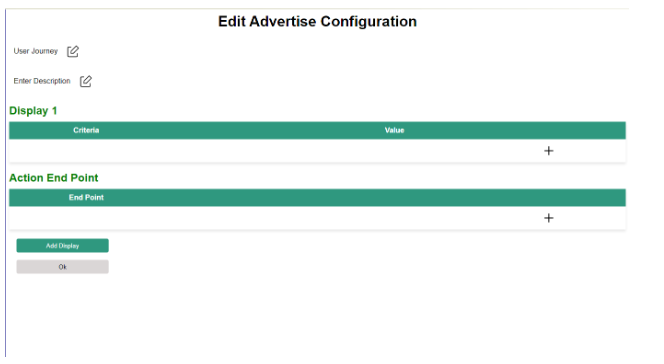
To add a new criteria, click the “+” (Add) button. A list of available criteria will appear in the dropdown. Select the desired criteria, then click the Save button to apply it.

After adding a criteria, the interface will update to display the selected criteria along with its default values.
An Action section will also be added, allowing you to configure the actions to be performed when the criteria are met.
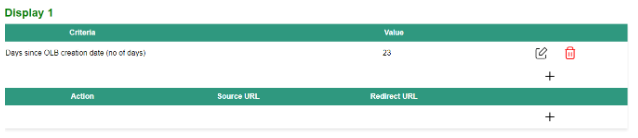
To add an action, click the “+” (Add) icon, then enter the required values in the form that appears.
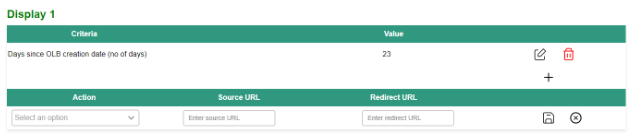
The available action options are shown in the dropdown menu within the Action section.

Select an action from the dropdown, then enter the Source URL and Redirected URL in the respective fields.
Click the Save button to apply the changes.
The interface will then update to appear as shown below.
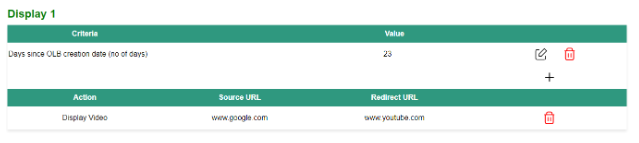
To create another display, click the Add Display button.
You can add multiple criteria and multiple displays as needed.