
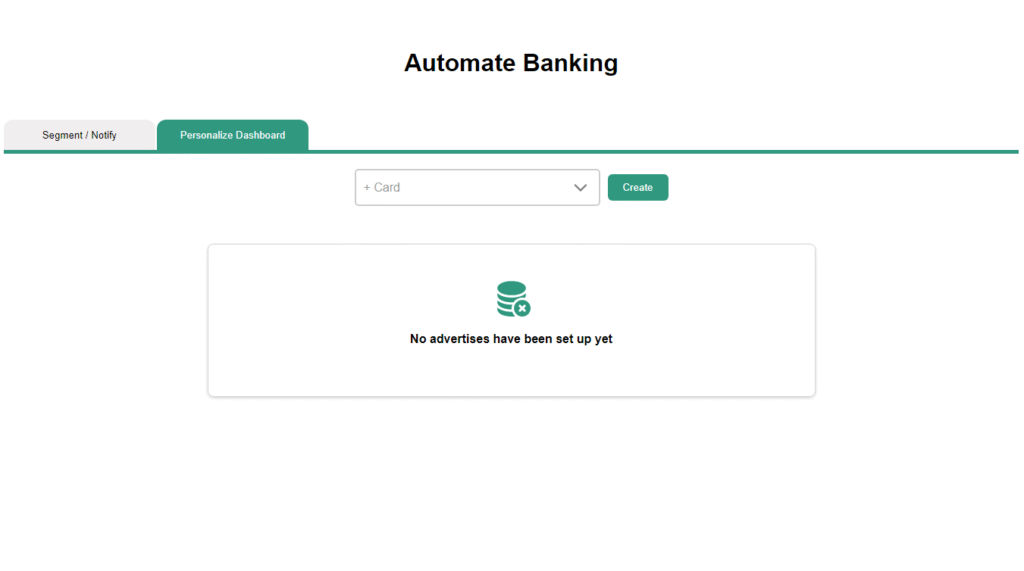
This dashboard includes multiple tabs for managing various features. When the Personalized Dashboard tab is selected, the following view is displayed:
- If no cards have been configured, a message appears:
“No advertises have been set up yet.”
To create a new card:
- Select a card type from the dropdown menu.
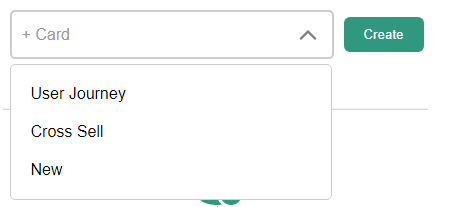
- Click Create to proceed.
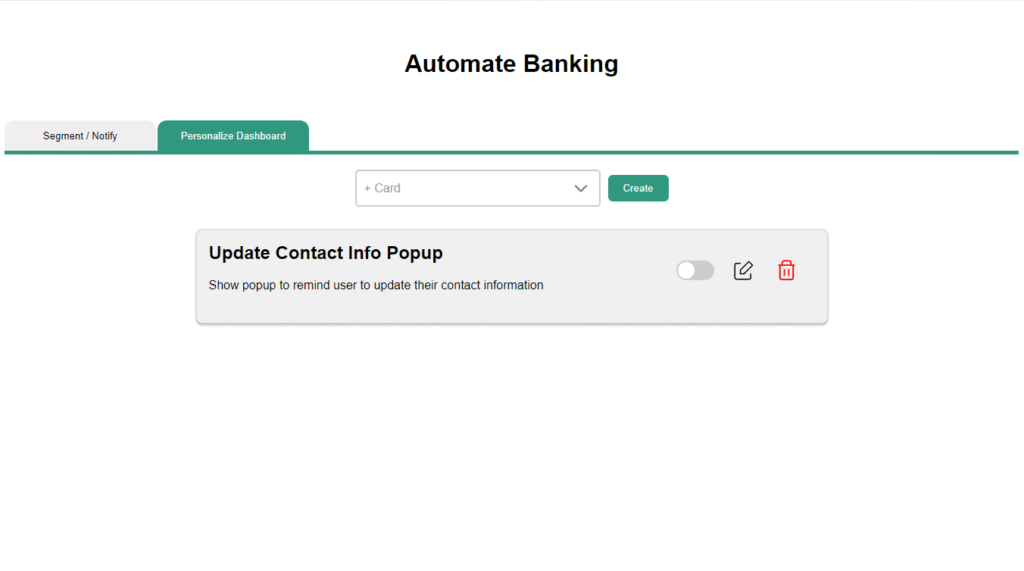
After creating an card the interface appears as follows:
Enable/Disable Card:
To enable or disable a card, use the Toggle button:
- When the automation is turned on, it will start working automatically. Whenever the entry point (like a specific event or condition) happens, the automation will run and carry out the set of actions you have defined.

- When the automation is turned off, it won’t run or perform any actions, even if the entry point is triggered.

Edit Card:
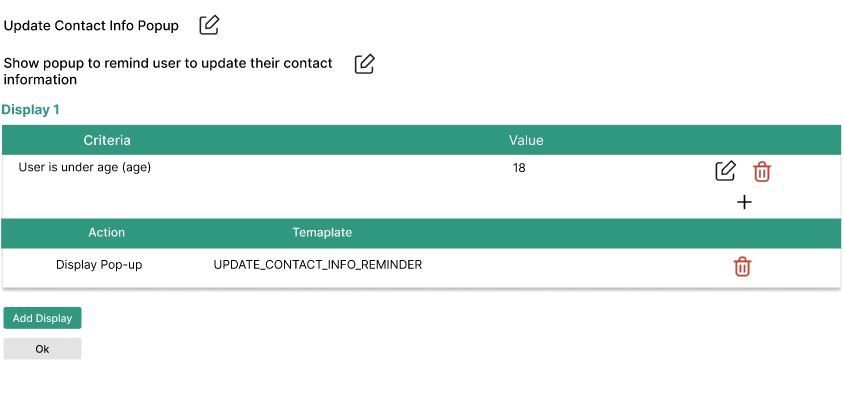
To modify the card configuration, click the Edit icon. You will be redirected to the Configure page, where you can update the card settings.

You will be redirected to the Edit Advertise Configuration page, as shown below.

Delete Card:
To delete a card, click the Delete icon. This will permanently remove the selected card.
