To add a new criteria, click the “+” (Add) button. A list of available criteria will appear in the dropdown. Select the desired criteria, then click the Save button to apply it.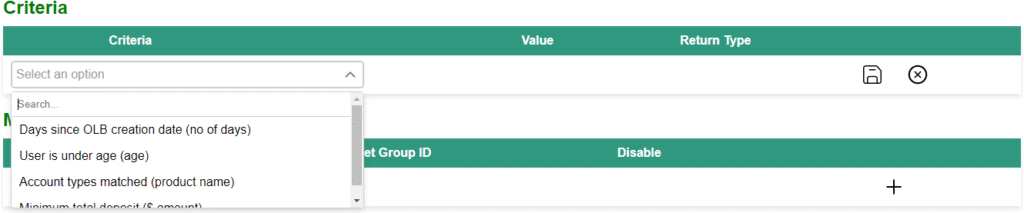
After adding a criteria, the interface will update to display the selected criteria along with its default values.

To update the values, click the Edit button, make your changes, and then click Save to apply them.

Delete Criteria:
To delete the criteria click on the delete icon. 
After deleting the Days since OLB creation date (no of days) the interface looks like this

Criterias Based on Selected Automation:
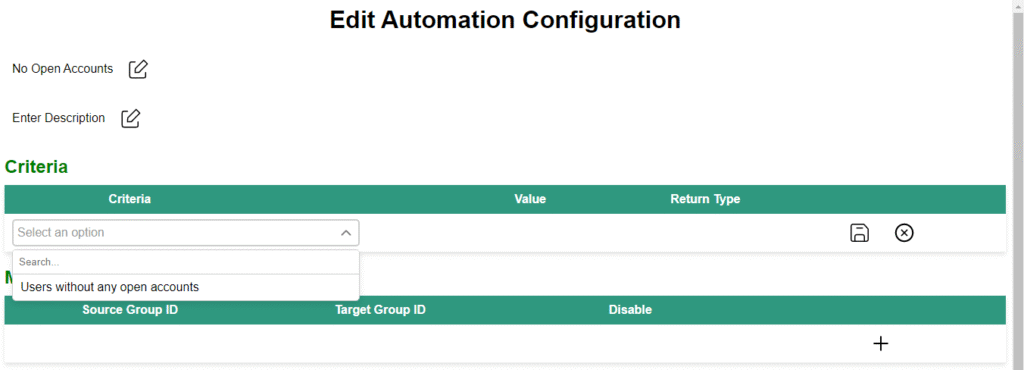
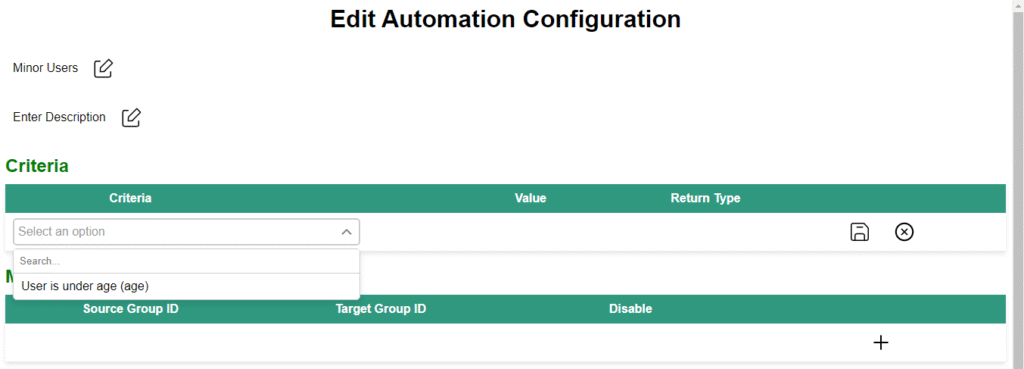
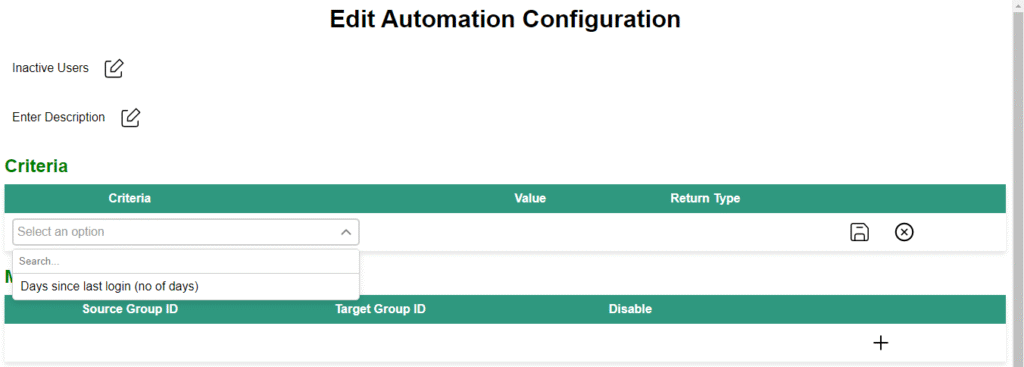
The available criteria in the dropdown are dynamically displayed based on the selected automation. Only the criteria relevant to that specific automation will be shown.
Criteria Displayed for the “New Users” Automation: When the “New Users” automation is selected, only the criteria relevant to identifying and processing new users will be displayed in the dropdown.
Criteria Displayed for the “Minor Users” Automation: When the “Minor Users” automation is selected, only the criteria relevant to identifying and processing new users will be displayed in the dropdown.
Criteria Displayed for the “Inactive Users” Automation: When the “Inactive Users” automation is selected, only the criteria relevant to identifying and processing new users will be displayed in the dropdown.
Criteria Displayed for the “No Open Accounts” Automation: When the “No Open Accounts” automation is selected, only the criteria relevant to identifying and processing new users will be displayed in the dropdown.